Bring your application together
Your project, from source to deployments
Bring a folder or GitHub repository into GroundControl, then connect the instances of that application running on your infrastructure.
One project with its source and explicitly selected deployment instances, each with its own host and environment.
On this page
A project is the application you are building
A project gives your application or product a home. Its source can be a local folder or a GitHub repository. Its deployments are instances of that application—for example, development on your computer and production on a Linux server.
| Item | Example | Purpose |
|---|---|---|
| Project | Weekend planner | The application and its shared context. |
| Source | A folder or GitHub repository | Where the application’s code lives. |
| Deployment | weekend-production | A running or configured instance on a particular host, with an environment and runtime identity. |
| Service | web, api, postgres | A component inside a deployment. A Compose stack can contain several services. |
A project does not require a Compose file. Compose is one runtime method, alongside a standalone container. Registering source does not automatically build or start an application.
1. Pick a folder or GitHub repository
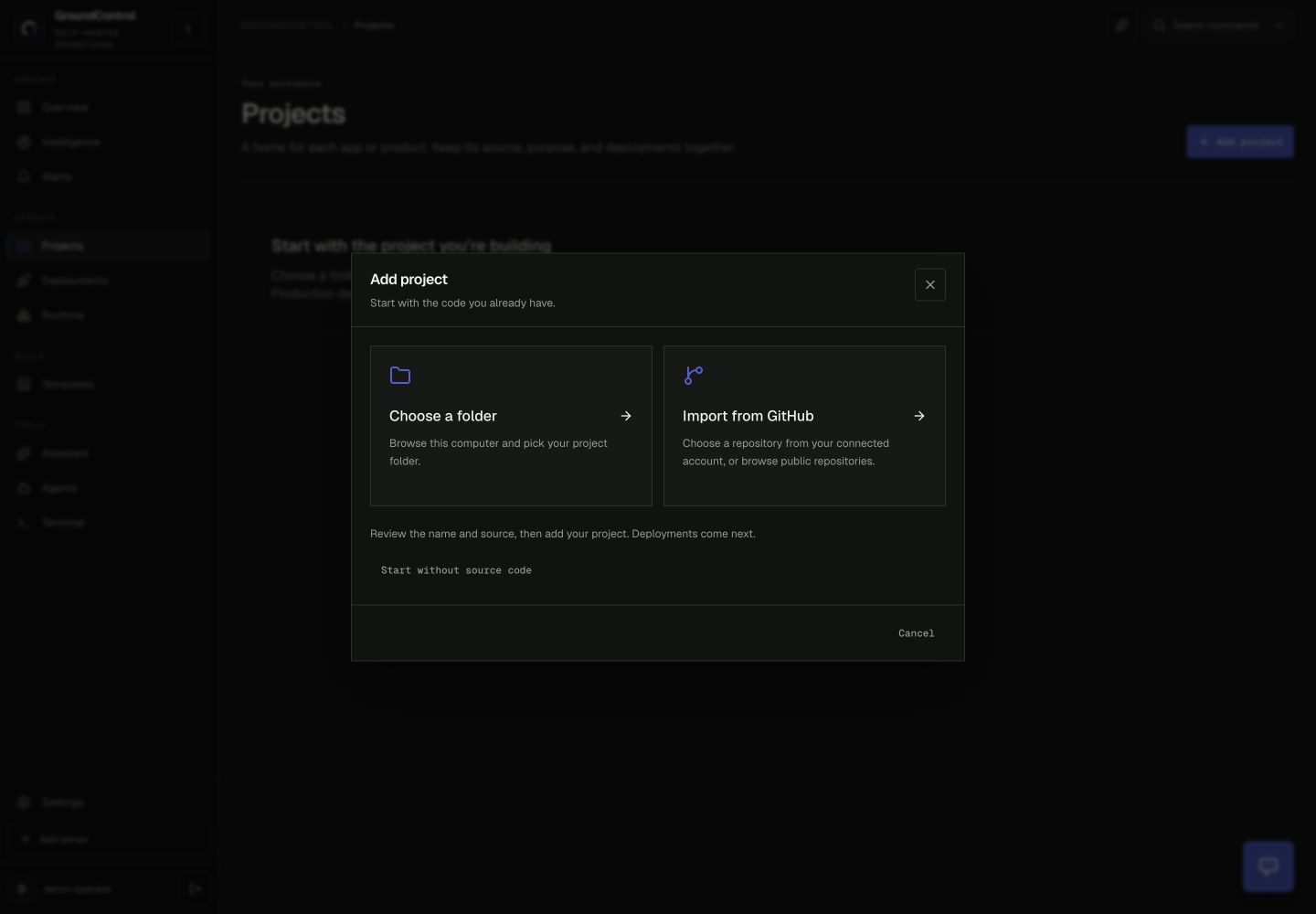
- Open Projects → Add project.
- Choose Folder to browse the host’s available locations and select your project folder. You do not need to type a path. For a local desktop install, use the Home, Workspace or Drives locations offered by the picker.
- Or choose GitHub, select a repository and confirm the project details. Public repositories can be found by owner; private repositories require a GitHub connection with access. GroundControl retains the repository’s default branch.
- Review the name and source, then add the project.
Adding source records the project’s identity. It does not move your files or restart existing deployments. Removing a source link does not delete the original folder or repository.
The picker browses the selected host. A remote server’s filesystem is different from your computer’s. If Docker Desktop cannot read a local folder, allow that location in Docker Desktop’s file-sharing settings and select a smaller accessible folder. Windows users browse locations available to WSL and Docker.
2. Connect an existing app or launch an instance
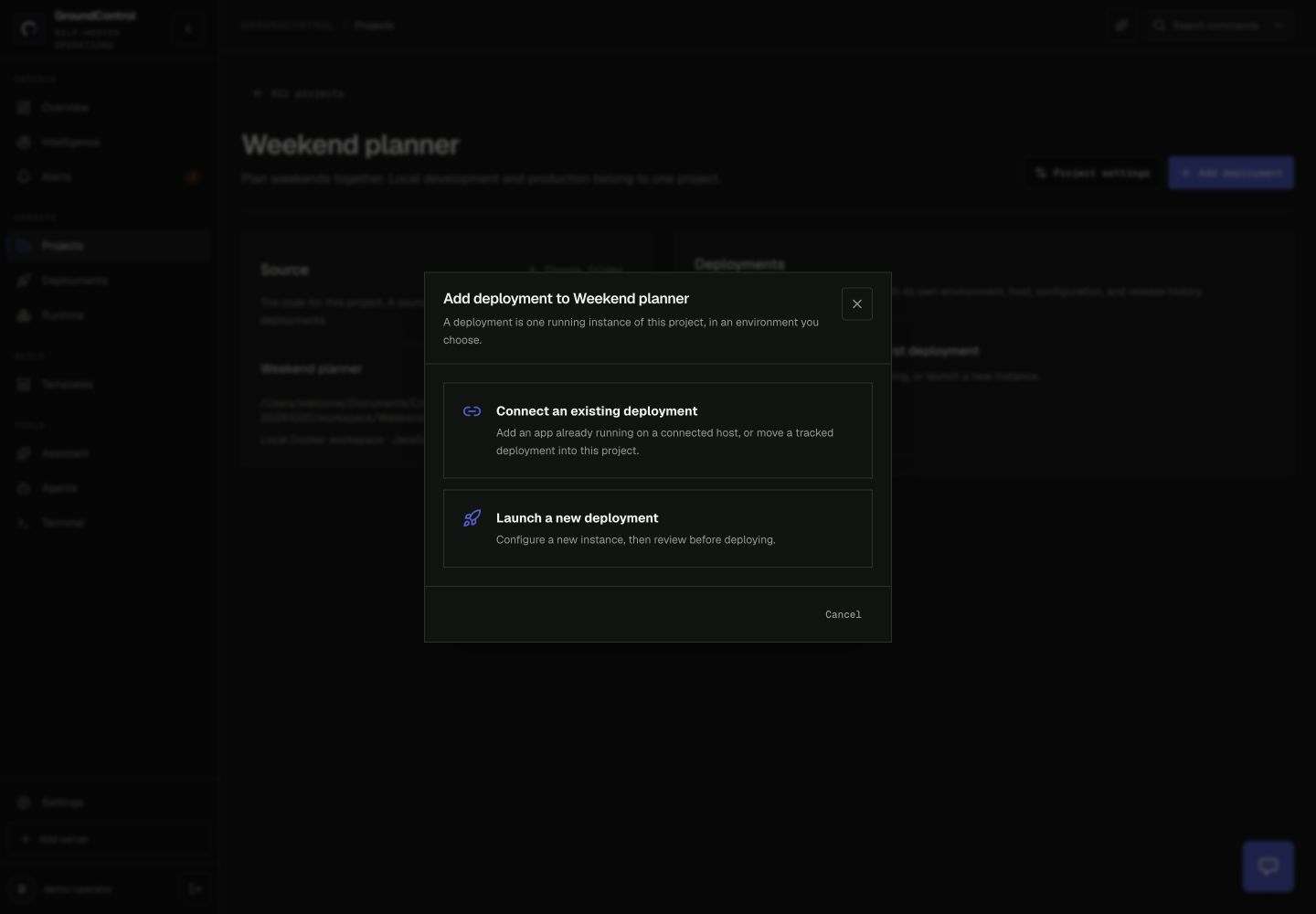
Open the project and select Add deployment. Choose the host, give the instance a useful name and set its environment.
| Path | What happens |
|---|---|
| Connect existing | Select an existing Compose workload or container. Review its runtime identity, then connect it to the project. Registration leaves the existing runtime and files in place. |
| Launch new · local Docker | Launch a container image as a new instance. The current local launcher is for a single image using its default command, without custom environment variables. It does not build arbitrary project source. |
| Launch new · Linux server | Continue through Templates to select a supported deployment recipe, verify the source and review configuration before creating the runtime. |
Multiple instances may share source while running in different environments. A source folder alone is not a deployment and is not offered as a running workload to agents.
Follow existing app enrollment or new deployment setup for the remaining runtime-specific steps.
3. Keep discovery useful
Discovery suggests workloads on the selected host. Compose services from the same stack appear together, and GroundControl excludes its own helper containers.
Use Dismiss to hide a suggestion you do not want. Undo or Restore hidden brings it back. Dismissing a suggestion does not stop or remove the underlying workload.
Projects without Compose can still be added through the folder or GitHub flow. Their runtime becomes a deployment only when you explicitly connect or launch an instance.
4. Work from a known deployment
Confirm the instance’s host, environment, services and public URL before operating it. Existing deployments, their configuration and their recorded history remain available when you organize them into projects.
For an external agent, authorize OAuth access to the specific deployments and capabilities it needs. Adding a project or connecting a runtime does not grant external-agent access on its own.