Bring one workload into view
Enrol an existing application
Start with an existing Docker Compose application. Give GroundControl an explicit workload identity before granting an agent access.
A tracked workload whose source, containers and public identity you have checked.
On this page
1. Find and enroll the workload
Open Deployments in your instance and choose Scan host. Existing workloads appear under Discovered on this host. Select Enrol deployment for the intended Compose project. Existing enrolled workloads can be opened directly by name.
A discovered candidate is read-only until enrollment. Confirm the host, source path and Compose identity correspond to your application before allowing mutations. Begin with an application you can redeploy and recover safely.
If the application is missing, use the discovery checks first. Enrollment registers its host, source or container and optional Compose path. It does not move its files, restart containers or deploy a new release.
The workload appears under Enrolled deployments. Its Manage tab lists the expected containers. An agent grant will select this enrolled workload, not every container on the host.
2. Connect it to your application’s project
From a project, choose Add deployment → Connect existing, select the workload and confirm its name and environment. The project holds your application’s source and its deployment instances.
You can also enrol from discovery, then use Move to project to organize it later. Moving or registering a deployment does not relocate files or restart its runtime.
See Projects & deployments to add sources from the folder picker or GitHub and connect additional environments.
3. Understand tracking and management mode
Enrollment from the discovery UI normally creates a track record with an initial observed status. A deployment created through Templates is enrolled as managed. Applications already known to GroundControl can also be reconciled into its managed inventory.
| State | What it means |
|---|---|
| Discovered candidate | A host finding. It is not yet an enrolled deployment or an external-agent grant. |
| Enrolled / track | GroundControl has a persistent workload identity. Available operator and agent actions have their own permissions and runtime requirements. |
| Managed | Eligible for managed source deployment when source, configuration and repository requirements are met. |
| Agent-authorized | A separate OAuth grant permits named capabilities on the selected enrolled deployment. |
There is currently no general “promote tracked workload to managed” control in this UI. Saving a GitHub URL does not perform that conversion. A disabled Autopilot after merge switch may mean the workload is not managed or the explicit repository is not linked. Do not change database flags or create a duplicate production stack to bypass that requirement.
Tracking mode is not a guarantee that every action is read-only. For an external agent, inspect the OAuth scopes and selected workload. Start with inspection and health before any authorized runtime action.
4. Record source and public identity
Open the deployment’s Configure tab. In Source identity, complete the following and choose Save source.
| Field | What to enter |
|---|---|
| Public URL | The real customer endpoint, such as https://app.example.com |
| GitHub repository | Select the linked repository or enter its full URL |
| Default branch | The branch you intend to deploy, usually main |
| Deployed commit | The revision actually running, not an arbitrary latest commit |
| Repository path | Monorepo subdirectory, or leave empty for repository root |
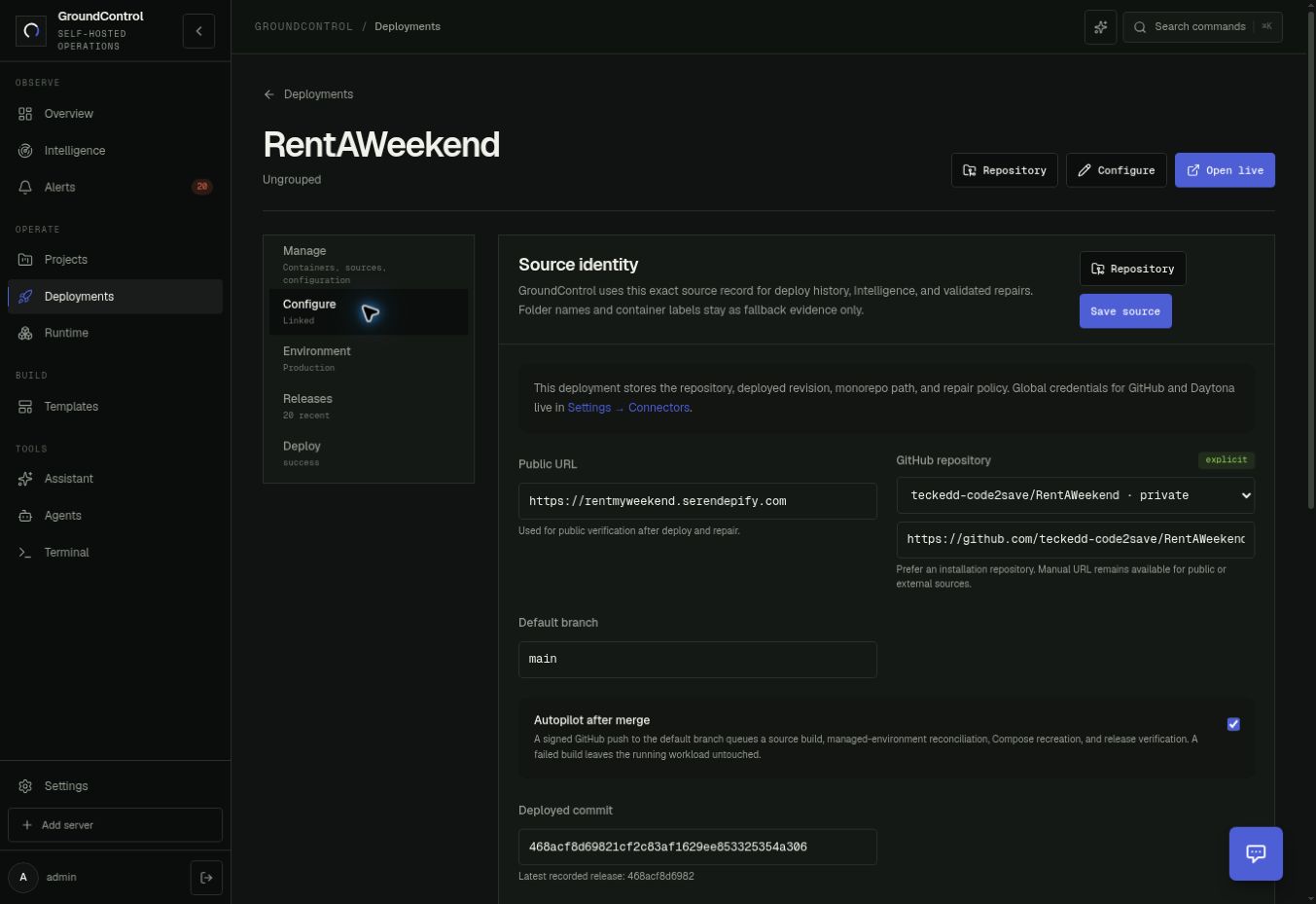
For private repositories, use Settings → Connectors to connect GitHub and grant repository access, then return and select the explicit repository. Keep Autopilot after merge off until a manual deployment has been verified.
5. Check configuration and runtime
Use Manage → View compose to inspect the Compose configuration. Check required variables in the Environment tab. Credentials belong in your instance’s configuration controls, not in a conversation or screenshot.
Check the expected web, API and dependency containers. A running container alone does not prove the customer route works. Open Open live and test a meaningful route.
You can explain which repository and revision correspond to the running services, and which public URL must pass after deployment. If those identities disagree, resolve them before enabling automation.
6. Connect your agent to this workload
Go to Connect your agent. During OAuth consent, select this deployment. After connection, ask the agent to inspect it and run a health check. Follow Deploy & automate for the first controlled redeploy. Enrollment does not grant an external agent any access by itself.
To remove a workload from the inventory, its actions menu offers Stop tracking. This removes the enrollment record; it does not remove the application’s files or containers. Review any dependent grants and records before using it.