Understand the scan
Discover workloads on your host
Understand where GroundControl looks, what a discovered candidate means, and how to resolve missing or unexpected results.
One candidate whose host, folder or container, Compose identity and supporting evidence you recognize.
On this page
1. Check the active host and scan locations
Use Settings → VPS to confirm the active connection. Open Settings → Layout → Deployment discovery and review these two fields:
| Field | Meaning |
|---|---|
| Look for existing workloads in | The root scanned for existing Compose folders. The default configuration uses /opt. |
| Create template deployments in | Where new template deployments are created. This root is also scanned. The default configuration uses /srv/groundcontrol/deployments; check your saved value. |
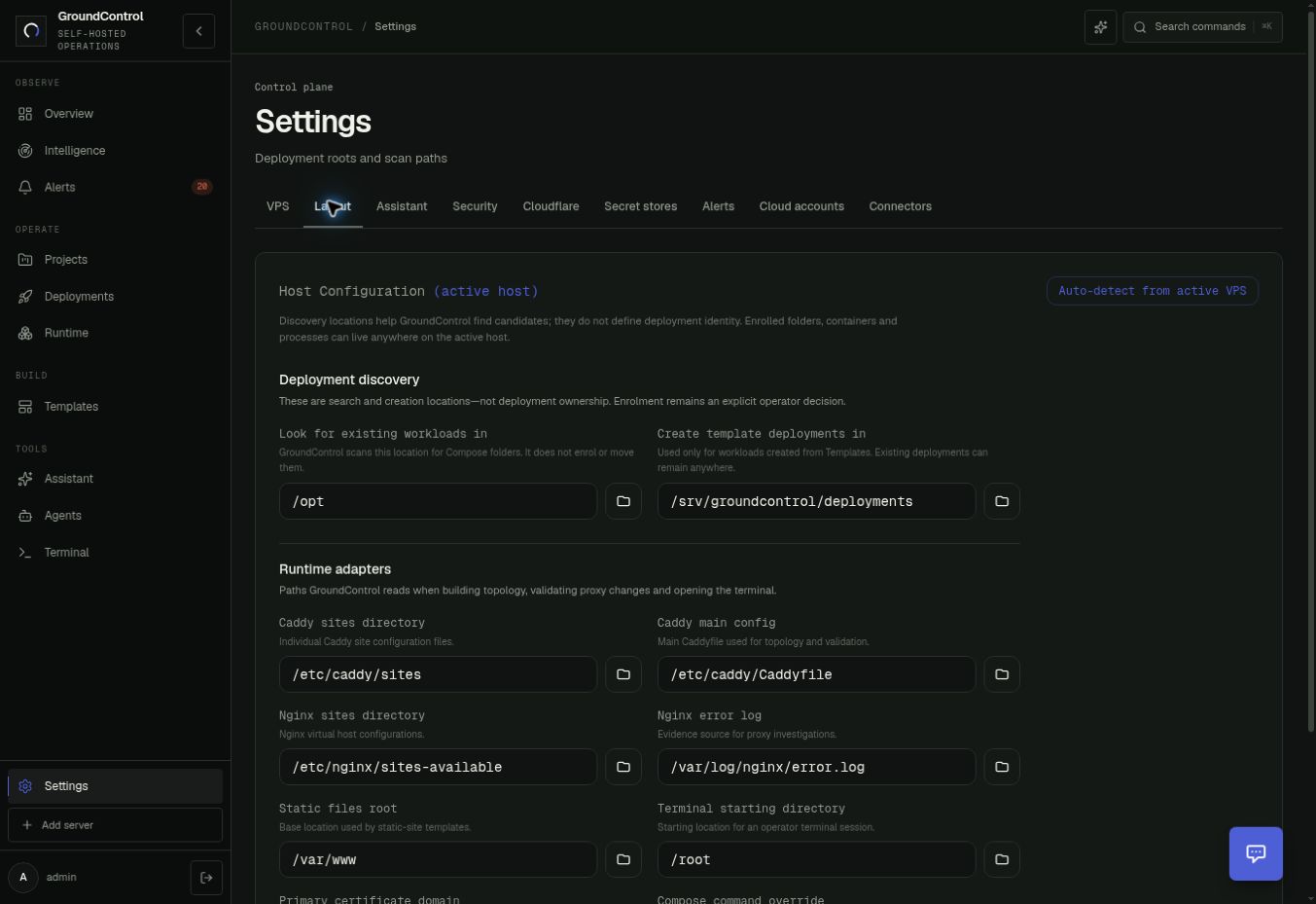
Save a path change with Save host configuration, then return to Deployments. A scan location is not an ownership rule: it does not move folders or automatically enroll all applications beneath it.
2. Run Scan host and read the findings
Open Deployments → Scan host. Previously enrolled workloads remain in Enrolled deployments. New candidates appear under Discovered on this host.
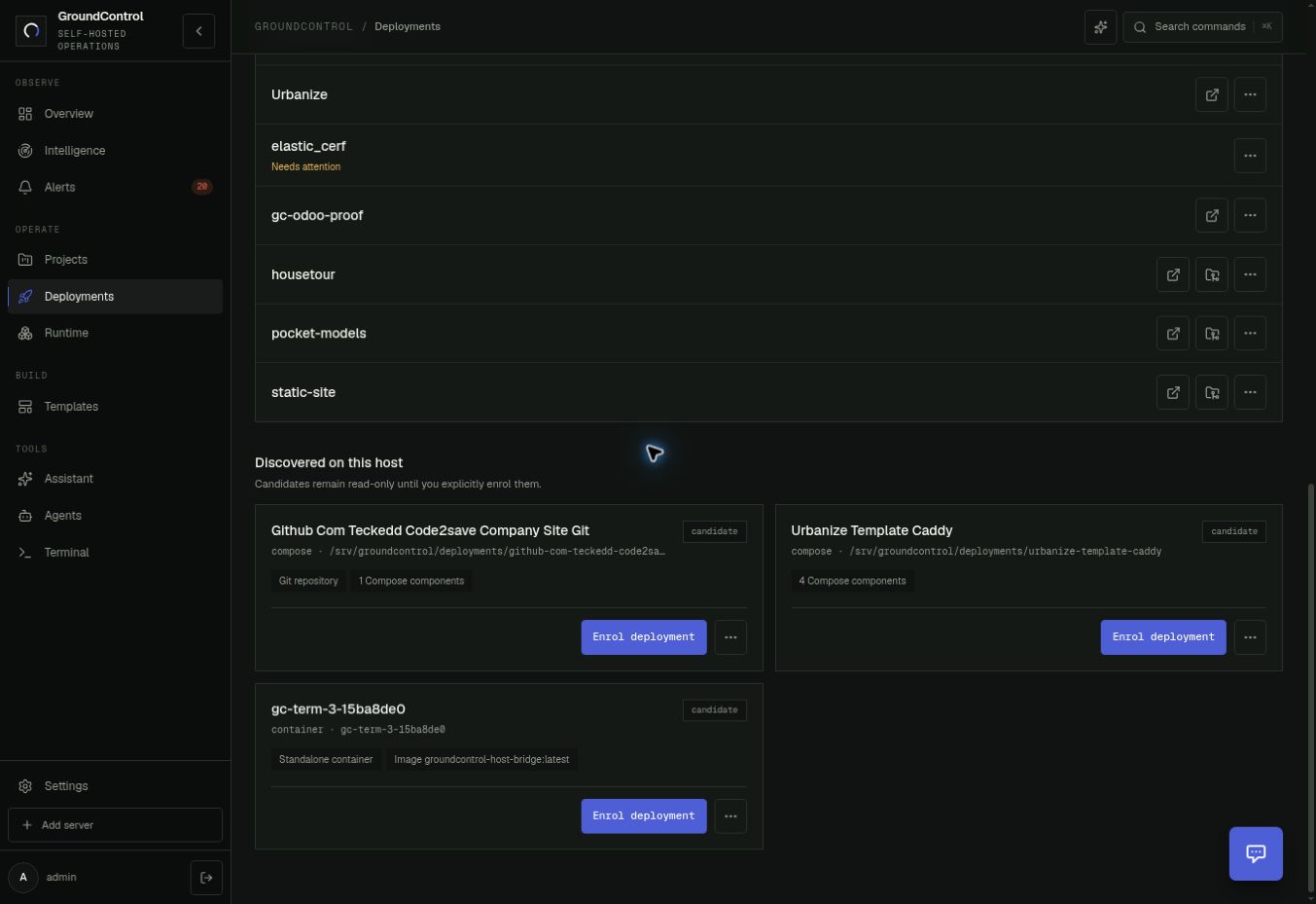
| Evidence shown | How to use it |
|---|---|
| Compose folder and path | Compare the absolute source and Compose paths with the application you operate. |
| Compose component count | Check whether the expected web, API and dependency services belong to this stack. |
| Git repository | A repository was detected in the folder. Confirm the actual repository and deployed revision separately. |
| Container, image and service label | Use these to identify a runtime candidate and distinguish application containers from helpers or infrastructure. |
| Route or domain hint | Treat it as a proposed relationship until its public URL and upstream are verified. |
Only enroll candidates you intend to track. Compose services from the same stack are grouped together. Use Dismiss to hide a suggestion, then Undo or Restore hidden to bring it back. This does not stop or delete the workload. GroundControl excludes its own helper containers.
How the inventory is assembled
- Search the configured existing-workload and template roots for
docker-compose.yml,docker-compose.yaml,compose.ymlandcompose.yaml. The inventory scanner uses a bounded search, currently up to three levels. - Read Compose services and useful metadata, and note Git presence alongside the file.
- Read Docker containers and Compose labels, including the working directory, project, service and configuration file paths where present.
- Match already enrolled paths and containers so they are not offered again as new candidates. A matching Compose folder usually supplies the application-level candidate.
- Show unmatched folders or containers for operator review.
Onboarding has a broader probe across common application directories. Deployment inventory uses the saved discovery roots and Docker evidence. These are different views, so their counts can differ. GroundControl also reconciles applications it already knows from earlier managed deployments.
If the application is missing or appears twice
| Symptom | Next check |
|---|---|
| Nothing appears | Confirm the active host, connection health and saved Layout roots. Check for a scan error before concluding the host is empty. |
| Onboarding found it, Deployments did not | The broader probe may have searched another location. Set the inventory root to the application's parent directory and scan again. |
| The folder is present but not discovered | Check the supported Compose filename, read permissions and nesting depth. A plain folder without Compose is not an inventory candidate by itself. |
| Only individual containers appear | Compose labels may be missing, or their working directory may not match a scanned folder. Inspect the runtime identity before enrollment. |
| Several candidates seem to be the same app | Compare Compose project, source path and container labels. Choose the complete application identity rather than enrolling duplicates. |
| An enrolled workload needs attention | Its saved identity may not match a present runtime. Inspect the workload before starting or recreating anything. |
docker compose ls
docker ps -a --format "table {{.Names}}\t{{.Image}}\t{{.Status}}"
A non-Compose application may be visible elsewhere in the host tools without being a supported folder candidate here. Do not invent a Compose identity to make it appear.
3. Enrol the intended workload
When the evidence matches, follow Enroll an existing application. That guide explains what enrollment changes, how project grouping works, and why a tracked workload is not automatically eligible for source deployment.