Authorize OAuth + MCP
Connect an agent through OAuth and MCP
Authorize a compatible MCP client to use your GroundControl instance. Follow the shared setup and the ChatGPT example below.
Your agent can list a granted deployment, inspect it and return a health result.
On this page
Choose your MCP client
GroundControl exposes its agent tools through MCP and authorizes clients through OAuth. Choose a client that supports remote HTTP MCP connections, OAuth discovery and browser sign-in. Each client receives its own grant with selected capabilities and deployments.
| Connection setting | Use this |
|---|---|
| Server URL | Your GroundControl HTTPS origin followed by /mcp |
| Authentication | OAuth, using the instance’s discovery metadata |
| Authorization | Sign in to GroundControl and select the workloads |
| First check | List deployments, then inspect one and check its health |
The walkthrough uses ChatGPT as a tested client. For another compatible client, add the same endpoint in its MCP server settings and complete the GroundControl consent flow. The endpoint, deployment scope and operation records belong to your instance.
Before you connect
- You have claimed GroundControl and can sign in as its administrator.
- Your instance has a reachable HTTPS address and passing OAuth discovery.
- At least one application is enrolled as a deployment.
- Your client or workspace permits custom MCP connections. Availability and approval requirements depend on the client and workspace policy.
For a self-hosted instance, the connection starts from its MCP URL. OAuth is built into GroundControl; there is no separate OAuth package to install on the VPS. Add your instance as a remote MCP server in the client you use.
1. Copy your MCP endpoint
In GroundControl, open Agents. Under MCP endpoint, choose Copy. The URL ends in /mcp. Use your instance’s domain, not this documentation site or the example operator’s domain.
Enter your instance address. This only formats the URL in your browser; it does not connect or send data.
https://gc.example.com/mcp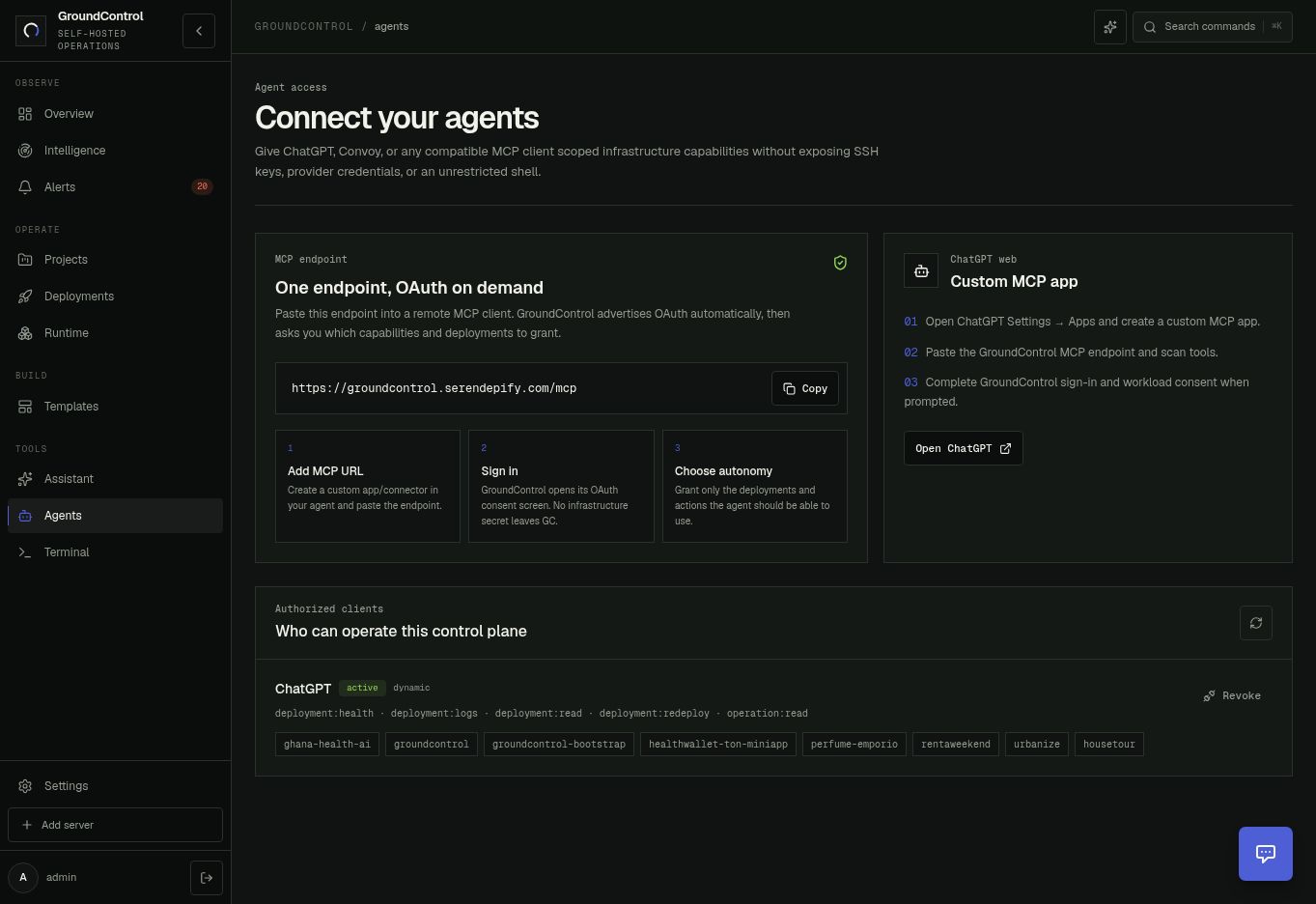
2. Add the connection in ChatGPT
This example uses ChatGPT on the web. Your account or workspace must allow custom MCP connections.
- In ChatGPT on the web, open Settings → Security and login and enable Developer mode, if available.
- Open Plugins and select the + button to add a connection.
- Name it GroundControl and add a description such as “Operate my approved deployments.”
- Under Connection, enter the copied HTTPS MCP server URL, including
/mcp. - Create the connection and review the discovered tools. Use OAuth when asked to choose authentication.
| Connection field | Value |
|---|---|
| Name | GroundControl |
| MCP server URL | https://YOUR-GROUNDCONTROL-HOST/mcp |
| Authentication, if shown | OAuth |
| Infrastructure credentials | Never paste SSH keys or registry credentials here |
ChatGPT navigation was checked against OpenAI’s connection guide on 22 September 2026. Older interfaces may call this Apps or Connectors. If custom connections are unavailable, check account and workspace policy.
3. Sign in and approve the exact workload
The connection redirects to your GroundControl instance. Sign in there as the operator. On the consent page, review Requested capabilities and select the intended workload under Allowed deployments, then choose Authorize for the selected deployment count.
The consent page lists scopes requested by the client; it is not a catalogue of every possible tool. Several tools can share one scope, which is why a five-scope grant can expose more than five tool names.
| Scope | What it allows |
|---|---|
| deployment:read | deployment.list and deployment.inspect |
| deployment:health | deployment.health |
| deployment:logs | deployment.logs |
| deployment:redeploy | deployment.redeploy, which changes the workload |
| operation:read | operation.get for recorded progress and evidence |
If the client requests redeploy access, treat that as a write permission. Use a client-configured read-only scope where available, or select only a workload whose redeployment you intend to authorize. Do not assume the consent screen offers a scope editor.
Return to Agents in GroundControl. Under Authorized clients, your client should be active and the correct deployment slugs should be listed.
4. Make the first read-only call
Open a new session with the GroundControl connection enabled. In ChatGPT, select it from the conversation’s tools menu. Send this first:
Use GroundControl to list the deployments available to you. Do not change anything.Then replace YOUR_DEPLOYMENT_SLUG with a slug returned by that call:
Inspect YOUR_DEPLOYMENT_SLUG and check its health through GroundControl. Report the recorded source revision, container states and public HTTP result. Do not redeploy.Your agent should call GroundControl and report tool evidence. If it only explains how you could run Docker yourself, check that the plugin is enabled in this conversation. A configured public URL should produce an explicit public check; a skipped check is not proof of HTTP health.
Compare with the recorded RentAWeekend result, then use the first redeploy walkthrough.
5. Reconnect or revoke access
If the client reports an expired or missing refresh token, use its reconnect/sign-in action and complete OAuth again. GroundControl supports rotating refresh tokens when the client requests offline_access. A grant reduces repeated credential handoffs; it does not remove client confirmation rules or the need to reauthenticate when access expires.
To end access, open GroundControl → Agents → Authorized clients → Revoke for the intended client. This revokes current tokens and cancels queued operations that have not started. An operation already executing continues recording its outcome rather than being force-killed.